
Quick answer and first checks
Do not edit the original file; crop and manually watermark a publishing copy. Record which Wix page uses which file. If you use central watermark settings, store the file version and app configuration as separate records.
- Separate originals from working copies
- Record where each file is used
- Try restoring a previous version
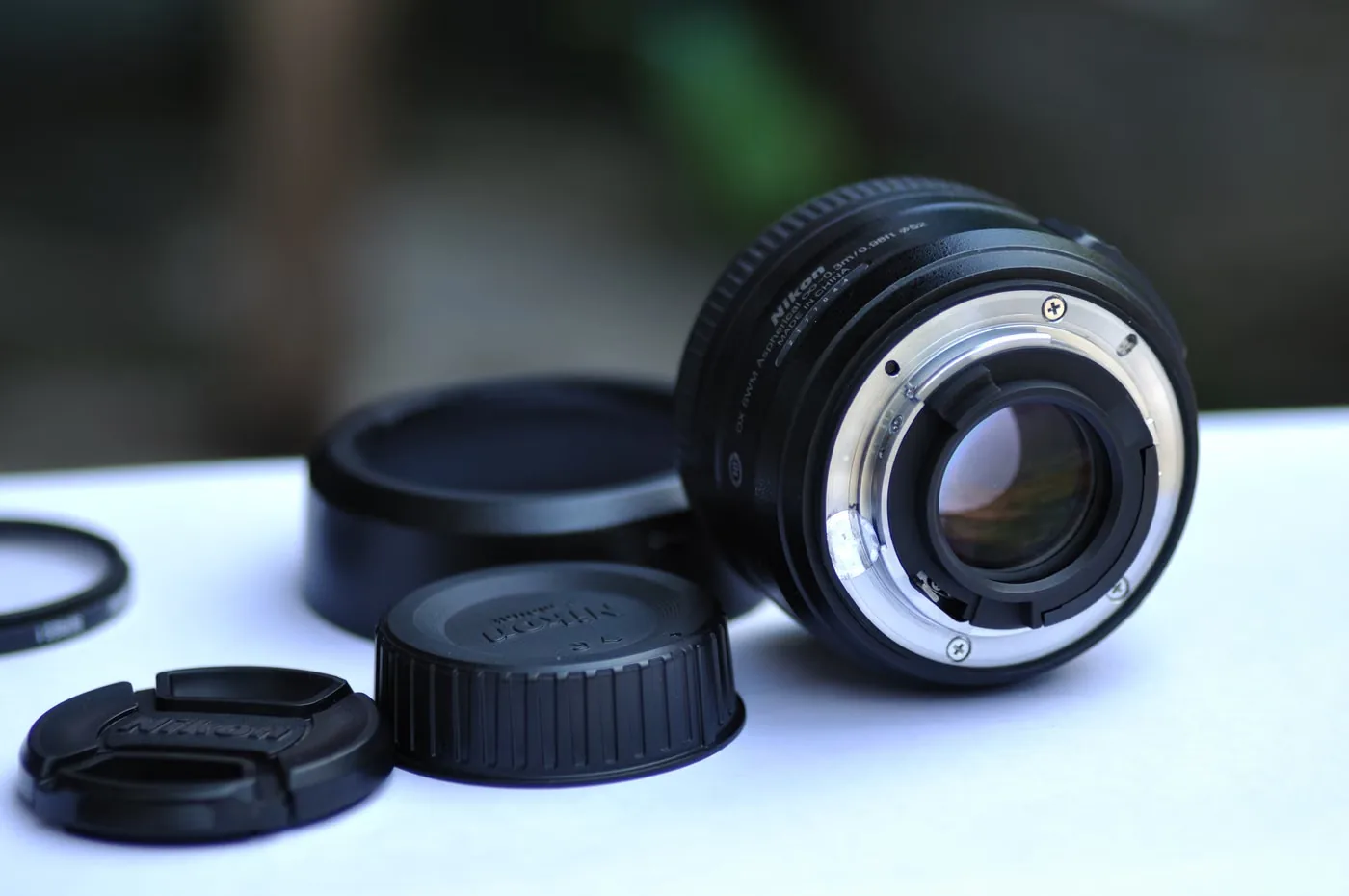
Keep originals and web copies distinct
Store the file received from the photographer or design team as an untouched original. Crop, resize and manually watermark a working copy. Keep the source, permission and associated page or product in the same record.
For example, “blue-mug-01-original” and “blue-mug-01-web-v2” distinguish two roles. These are naming examples, not requirements. Avoid putting customer names or private order details in public file names.
Take one photo through the workflow
- Keep the original outside the working folder and periodically check that its backup can actually be opened.
- Choose the web copy’s crop and size according to where it will appear, preserving the necessary detail.
- Start manual watermarking from a clean copy instead of layering a new mark over an old one.
- Record where the uploaded file is used: page, blog cover, post body or product photo.
- After publication, check mobile presentation, alt text and the social image. Keep the previous web copy for rollback.
Central settings do not replace an archive
When using Filigrunner, record the existing scope and appearance before changing them. Keep a set of example pages so you can compare product and non-product components. If you need to reverse a change, distinguish restoring the old app setting from restoring the correct image file. They are different operations.
Common questions
Does deleting a Wix file remove every use of the image?
Do not rely on that assumption. Check its usage before deleting or replacing it, reconnect the new file where necessary and verify the published site afterwards.
Is one backup enough?
The answer depends on the value of the archive and the working process. At minimum, avoid a single device failure taking both originals and web copies with it. Do not treat a backup as verified until you have tried restoring a sample.
Sources and scope
Sources reviewed: 16 October 2026. Wix interfaces and app versions may change. Official sources support Wix behaviour; the example scenarios and checklists are the workflow proposed by this guide.